
TLDR
Successful flyers printing starts with the distribution job, not the paper catalog. Decide where people will receive the flyer, how long they will look at it, and what they should do next. Then choose the size, number of printed sides, paper, finish, quantity, and delivery date. Confirm the printer’s specifications before exporting the final file, especially its trim size, bleed, accepted file format, and requirements for printer’s marks.
For a dependable everyday business flyer, use a familiar handout size, put one clear offer and response route on the front, and add a second side only when the supporting information earns the space. Matte or uncoated paper favors easy reading; gloss suits photo-led promotions. Order from a realistic distribution count rather than choosing an attractive round number.
Begin with the flyer’s actual job
A flyer handed to customers at a café counter has a different job from one left by a home-service company after an estimate. The café piece may need one bold food photograph, a lunch offer, and a QR code. The service flyer may need a short list of services, trust signals, contact details, and enough white space to write an appointment time.
Write a one-sentence purpose before opening a template: “This flyer should persuade nearby office workers to try our weekday lunch special.” That sentence gives you a filter for every later decision. Information that does not support the purpose can move to the back or disappear entirely.
Common flyer jobs include counter handouts, event takeaways, restaurant inserts, service overviews, in-store promotions, appointment leave-behinds, neighborhood distribution, and mailed campaigns. Distribution matters because it determines how much attention the piece is likely to receive. A flyer passed to an interested customer can support more detail than one competing for attention on a crowded community table.
Choose a flyer size that fits the reading situation
There is no single best flyer size. A compact flyer is convenient for handouts, takeaway bags, and limited counter space. A larger everyday format provides more room for menus, schedules, service explanations, or several product images. A letter-size sheet can work well when the flyer doubles as an information sheet, while a larger piece starts to behave more like a small poster.
Availability varies by printer. For example, VistaPrint’s current U.S. flyer offering lists 11 size options, optional double-sided printing, multiple upload formats, and several paper categories. Treat those as examples of one provider’s catalog rather than universal specifications. Before designing, select a printer or at least verify that your intended size is commonly available.
| Distribution job | Useful format direction | Design priority |
|---|---|---|
| Counter or checkout handout | Compact or standard handout | One offer visible immediately |
| Event takeaway | Easy-to-carry handout | Date, location, and next action |
| Menu or service overview | Roomier standard sheet | Scannable sections and prices |
| Appointment leave-behind | Standard sheet with writing space | Contact details and notes area |
| Window or noticeboard display | Larger flyer or poster-style piece | Readable headline at a distance |
| Mailed promotion | Mail-compatible format confirmed first | Postal space and mailing requirements |
Do not force a dense message onto a tiny format merely to save paper. If the design needs seven-point type, crowded edges, and a miniature QR code, the format and message are mismatched. Either reduce the content, use both sides, or move to a larger size.
Match the paper and finish to the message
Paper affects color, glare, texture, durability, and whether someone can write on the flyer. Stock names and weights are not perfectly consistent across printers, so compare the provider’s descriptions and samples rather than relying only on a familiar label.
- Gloss is a strong choice for saturated photographs, food imagery, entertainment promotions, and colorful retail offers. Its reflective surface can make images feel lively, although glare may reduce readability under strong lighting.
- Matte or silk is a flexible middle ground for service flyers, event programs, menus, and promotions containing both images and substantial text. It generally feels polished without making every surface highly reflective.
- Uncoated paper has a natural, tactile appearance and is usually the practical direction when staff or customers need to write on the piece. Colors can appear softer than they do on coated stock.
- Recycled options can support a natural visual style, but appearance and surface character vary. Check the printer’s current stock description instead of assuming every recycled sheet looks the same.
- Heavier paper can make a flyer feel more substantial and survive repeated handling, but it may cost more and may be unnecessary for a short-lived handout.
If paper is the main uncertainty, review the more detailed guide to choosing the best paper for flyers. For most small-business orders, I would prioritize readability and appropriate handling over the most luxurious finish.
Decide whether the flyer needs one side or two
Use one side when the message is immediate: one event, one limited offer, one opening announcement, or one call to action. A single-sided flyer can also make sense when it will be pinned to a board or displayed in a window where the reverse will never be seen.
Use two sides when the front can attract attention and the back can answer the next questions. Put the headline, main benefit, strongest image, offer, and primary response route on the front. Use the reverse for a menu, service list, map, schedule, terms, frequently requested details, or a secondary contact method.
Do not split essential information unpredictably. A person should be able to identify the business, understand the main offer, and find the next action from the front. The back should deepen the message rather than rescue an unclear front.
Prepare a file the printer can produce cleanly
Start with the printer’s template or documented trim dimensions. Trim size is the intended final size after cutting. Bleed is additional artwork extending beyond that edge so small cutting variation does not reveal an unwanted white line. Adobe describes 0.125 inch, or 3 mm, as typical industry practice, while also advising designers to confirm the print provider’s requirement. Adobe’s explanation of print bleed provides a useful visual reference.
Bleed is needed when a background color, photograph, or graphic should reach the finished edge. Extend that artwork into the bleed area; do not merely enlarge the page at export. Keep logos, text, QR codes, and contact details comfortably inside the trim. The exact safe margin should follow the printer’s template, but the principle is simple: important content should not sit where normal cutting variation could make it look cramped or clip it.
Crop marks and other printer’s marks are not automatically helpful. Adobe describes them as commercial-print workflow controls and recommends confirming which marks the provider expects. Many online ordering systems want a file with bleed but no marks, while another workflow may request specific marks. Follow the selected printer’s instructions rather than adding every export option available.
For a deeper setup walkthrough, use the guide to bleed and safe area or the broader print-ready file checklist. When evaluating where to order, you can also review online printing options after defining the project specifications.
Preflight checklist before uploading
- Confirm that the document’s trim size matches the ordered product.
- Add the required bleed wherever artwork touches an edge.
- Keep essential text, logos, and codes inside the safe area.
- Export the file type and PDF settings requested by the printer.
- Include crop marks only when the printer specifically requests them.
- Check names, dates, prices, phone numbers, addresses, URLs, and offer terms.
- Scan any QR code from a printed-size test, not only from a large screen preview.
- View both sides in the correct orientation and reading order.
- Order a proof or a small test quantity when color, folds, codes, or critical details create meaningful risk.
Plan quantity from distribution, not guesswork
A sensible quantity begins with a distribution plan. Count the locations, event sessions, delivery routes, staff members, outgoing orders, or customer appointments that will use the flyer. Estimate the quantity for each channel, then add a modest contingency for damage, unexpected attendance, and replenishment.
For example, imagine a café wants flyers for three nearby office lobbies, its own counter, and takeaway bags. It could estimate 100 flyers per lobby, 150 for the counter, and 250 for bags. That produces a working need of 700. Adding 10 percent for replenishment and waste gives 770, so the café can compare the nearest available order quantities around that number. This is an estimate, not a universal ordering formula.
Avoid buying a much larger run solely because the unit price falls. Extra flyers have little value after a dated event, seasonal menu, price, or promotion expires. A smaller current batch can be more economical than a cheap stack that becomes recycling.
Treat mailed flyers as a separate project
If the flyer will enter the postal system, check mailing requirements before settling on its size or layout. USPS describes Every Door Direct Mail as a route-based local promotion option for materials including flyers, postcards, and menus, subject to physical-format and indicia requirements. Its EDDM Retail guidance generally sets a minimum of 200 pieces and permits up to 5,000 pieces per day per ZIP Code. Verify the current rules directly with USPS before designing or paying for printing. Review current USPS Every Door Direct Mail requirements.
A counter flyer should not automatically become a mail piece. Mailing may require a different format, space for postal elements, bundling, paperwork, and a route-based quantity. Starting with the postal specifications prevents an expensive redesign after printing.
Worked example: a neighborhood café lunch flyer
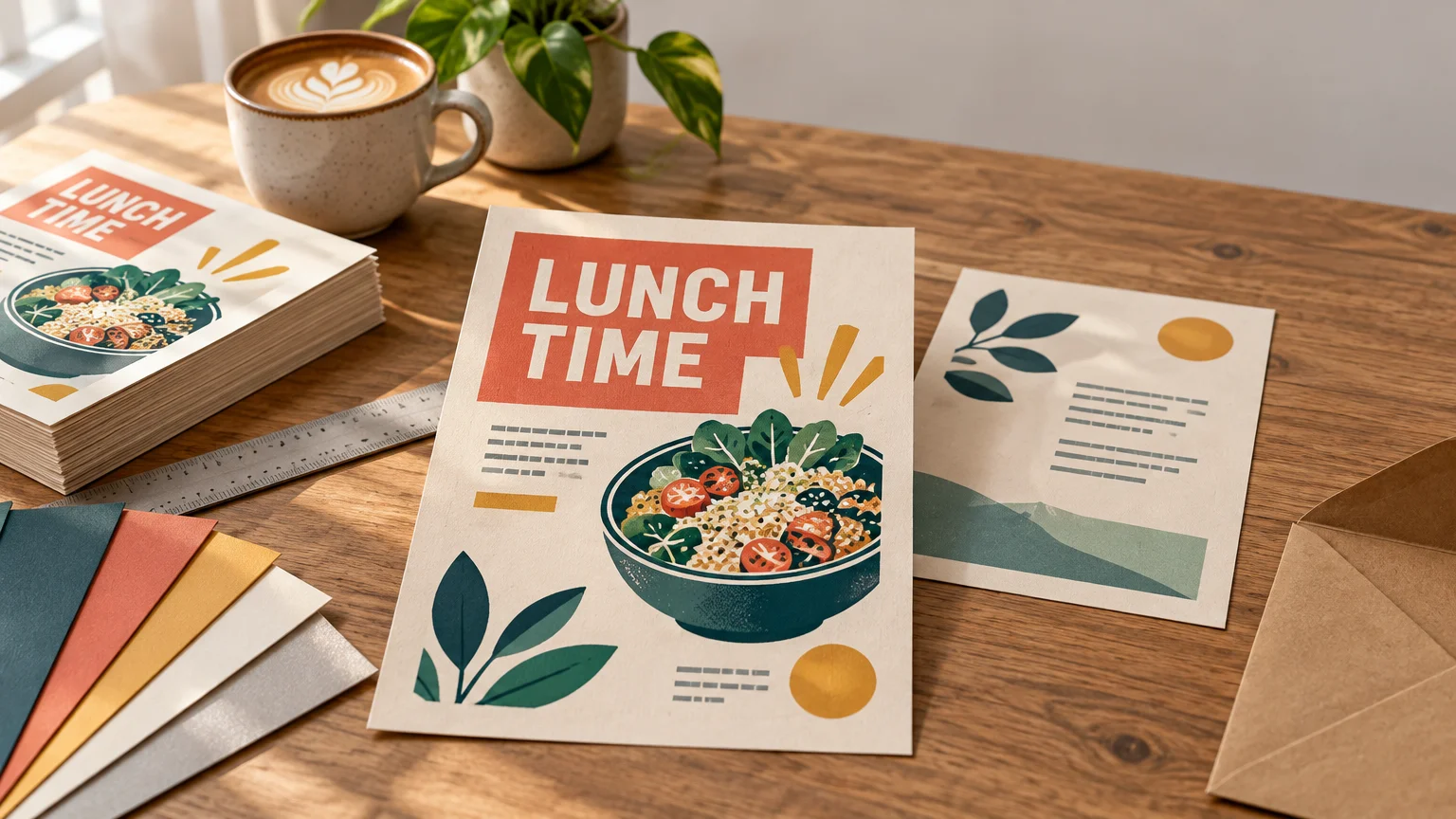
Suppose a café wants to increase weekday lunch traffic from nearby offices. The flyer’s front could feature one appetizing meal photograph, a short headline, the lunch hours, a simple offer, and one next action such as viewing the menu. The business name and location should remain easy to find without competing with the offer.
The reverse could carry three popular lunch options, dietary notes, a small location map, and the offer terms. A matte or low-glare coated paper would favor comfortable reading; gloss could be considered if the photograph is the main selling device. The best choice depends on the actual sample and lighting where the flyers will appear.
The café would count office locations, counter use, and takeaway distribution before choosing a quantity. It would then work backward from the launch date, allowing time for design approval, proofing, production, delivery, and correction if something is wrong. The result is not merely a good-looking flyer. It is a printed piece designed for a specific route into a customer’s hands.
Your final ordering decision
Before approving flyers printing, write down the purpose, distribution method, trim size, sides, paper, finish, quantity, file requirements, proofing choice, and required delivery date. Check the printer’s current product page because available stocks, names, sizes, production schedules, and upload rules can change.
The simplest reliable approach is to make the front understandable in a few seconds, give supporting details only the space they deserve, and build the file to the selected printer’s specifications. Once those decisions are clear, comparing prices and turnaround becomes much easier—and the finished flyer has a better chance of being read, kept, and acted on.